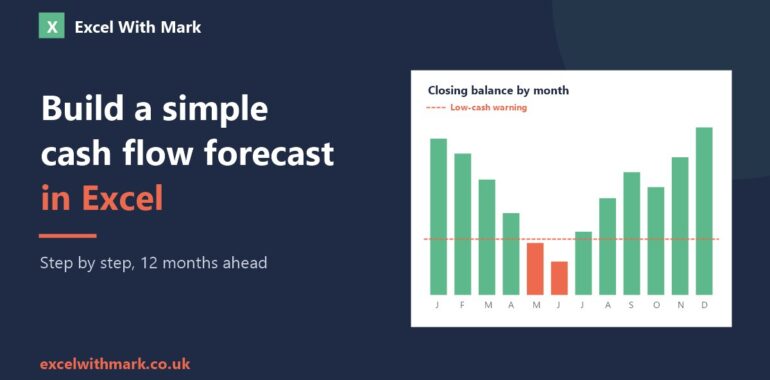
Profit and cash are not the same thing. A business can be profitable on paper and still run out of money because a big customer pays late, the VAT bill lands in a quiet month, or stock has to be paid for weeks before it sells. A cash flow forecast shows you those pinch points months before they arrive, while there’s still time to do something about them.
I’ve built more of these than I can count in my finance career, and the best ones are simple. Here’s how to build one in Excel in about an hour.
What a cash flow forecast actually shows
For each month ahead it answers one question: how much money will be in the bank at the end of the month? It gets there with a simple chain:
- Opening balance: the cash you start the month with
- plus receipts: money coming in (customer payments, loans, grants, VAT refunds)
- minus payments: money going out (suppliers, wages, rent, loan repayments, VAT, tax)
- equals the closing balance, which becomes next month’s opening balance
It’s about when cash actually moves, not when you invoice or get billed. If you invoice £10,000 in March on 30-day terms, that’s an April receipt.
Step 1: Set up the layout
- Use column A for labels, then one column per month (B to M for 12 months). Put real dates in row 1 and format them as mmm yy, so the forecast is easy to roll forward later.
- Add a Receipts section with one row per type of income, and a Total receipts row.
- Add a Payments section with one row per type of cost, and a Total payments row.
- Finish with the summary rows: Opening balance, Net cash flow and Closing balance.
Keep the categories broad. Ten to fifteen payment lines is plenty for most small businesses. Any more and updating it becomes a chore, and a forecast nobody updates is worse than none. The top of yours might look like this:
| Jan | Feb | Mar | |
|---|---|---|---|
| Customer payments | 18,000 | 15,500 | 21,000 |
| Other income | 0 | 2,000 | 0 |
| Total receipts | 18,000 | 17,500 | 21,000 |
| Suppliers | 7,500 | 6,800 | 8,200 |
| Wages and PAYE | 6,000 | 6,000 | 6,000 |
| Rent and overheads | 2,200 | 2,200 | 2,200 |
| VAT | 0 | 0 | 4,800 |
| Total payments | 15,700 | 15,000 | 21,200 |
| Opening balance | 12,000 | 14,300 | 16,800 |
| Net cash flow | 2,300 | 2,500 | -200 |
| Closing balance | 14,300 | 16,800 | 16,600 |
Notice March: a good month for sales, but the quarterly VAT bill tips it into a small outflow. That’s exactly the kind of thing a forecast is for.
Step 2: Add the formulas
Say your receipts are in rows 3 to 4 with the total in row 5, payments in rows 7 to 10 with the total in row 11, and the summary rows are 13 to 15. In column B:
- Total receipts (B5):
=SUM(B3:B4) - Total payments (B11):
=SUM(B7:B10) - Net cash flow (B14):
=B5-B11 - Closing balance (B15):
=B13+B14 - Opening balance: in the first month (B13), type your actual bank balance today. Every month after links to the month before, so C13 is
=B15. Copy that across to M13.
That last link is the most important formula in the sheet. It turns twelve separate months into one forecast, and it’s the one most often broken by someone typing over it. Shade your input cells (light yellow works well) and leave the formula cells white, so it’s obvious which is which.
Step 3: Fill in the numbers honestly
- Start with the fixed costs. Rent, wages, loan repayments and subscriptions are the easiest to predict, and usually the biggest.
- Put the lumpy payments in the right month. VAT quarters, corporation tax, annual insurance, the big seasonal stock order. These are what catch people out.
- Time receipts by when customers really pay. If your terms are 30 days but most people pay in 45, forecast 45.
- Be a little pessimistic. Put income slightly lower and later than you hope, and costs slightly higher and sooner. A pleasant surprise beats the other kind.
Step 4: Add a low-cash warning
Decide the lowest balance you’re comfortable holding (a month of wages and rent is a sensible start) and type it into a spare cell, say B17. Then:
- Select the closing balance row (B15:M15).
- Go to Home > Conditional Formatting > Highlight Cells Rules > Less Than.
- Point it at
$B$17and pick a red fill.
Any month that dips below your safety level now turns red. Two more formulas are worth adding underneath:
- The lowest point in the year:
=MIN(B15:M15) - Which month that is:
=INDEX(B1:M1,MATCH(MIN(B15:M15),B15:M15,0))
Finally, select the month row and the closing balance row and insert a column chart. A glance at the bars tells you more than the numbers do, just like the chart at the top of this post.
Step 5: Compare actual against forecast every month
A forecast earns its keep when you check it. At each month end:
- Add an Actual sheet laid out the same way.
- Type in what really came in and went out, straight from your bank statement.
- Work out the variance (actual minus forecast) and look at anything more than 10% out.
- Roll the forecast on a month, so you always have twelve months ahead.
After three or four months you’ll know which lines you always get wrong, and the forecast gets noticeably better.
Common mistakes to avoid
- Mixing up profit and cash. Depreciation isn’t cash. Loan repayments and VAT are.
- Forgetting VAT. If you’re VAT registered, your receipts and payments include VAT, and the quarterly bill to HMRC needs its own line.
- Typing the opening balance every month. Only the first month is typed in. The rest link to the previous closing balance.
- Building it once and never updating it. Ten minutes a month is all it takes.
Want a head start?
If you’d rather not build it from scratch, my Cash Flow Forecast template (£19) has all of this done for you: a rolling 12-month forecast, receipts and payments by category, a closing balance chart with a low-cash warning, and an actual vs forecast sheet. It comes with sample data and a step-by-step “How to use” sheet, and works in Excel 2016 or later, Microsoft 365, Excel for Mac and Excel online.
And if your cash flow needs something more tailored, such as figures pulled straight from your accounts software or a Power BI dashboard the whole team can see, book a free 15-minute call and we’ll work out what you need.